How to Get Better 4K IPTV Picture Quality in 2026: Settings, Internet Speed & TV Tips
How to Get Better 4K IPTV Picture Quality in 2026: Settings, Internet Speed & TV Tips
You unpack a brand-new 4K Ultra HD television, connect your high-speed internet, open your IPTV player, and select a channel labeled "4K." Yet, as the stream loads, the image feels disappointing. Instead of the razor-sharp clarity, vibrant color depth, and fine texture details you expected, the picture appears soft, slightly blurry, heavily compressed, or washed out during fast-moving scenes.
This frustration is common among streaming enthusiasts in 2026. A widespread misconception is that purchasing a 4K television or having a 500 Mbps connection automatically guarantees a pristine 4K image. In reality, display resolution is merely the final destination of a complex digital pipeline.
The actual picture quality you experience depends on a complete, interconnected streaming chain:
Source Feed → Stream Bitrate → Internet Network → IPTV Player → Streaming Device → HDMI Cable → TV Processing → Display Panel
If a bottleneck occurs at even one link in this chain, picture quality degrades significantly. Upgrading your television alone will not solve a low-bitrate stream, just as a fast network cannot compensate for an improperly configured streaming box or over-processed TV picture mode. When streaming with a premier service like 4K IPTV USA, identifying where image detail is lost empowers you to unlock the full visual potential of your setup.
In this comprehensive 2026 guide, we will analyze every component of the 4K IPTV streaming chain. You will learn how to verify your real stream resolution, optimize TV and device picture settings, eliminate network bottlenecks, configure IPTV player hardware decoding, and systematically troubleshoot soft or pixelated video.
4K IPTV streaming on a modern smart TV
What Actually Determines 4K IPTV Picture Quality?
To understand why a video stream looks sharp or blurry, you must understand the four primary factors that dictate digital image fidelity. Resolution is the headline specification, but it is only one part of the equation.
Resolution
Resolution defines the raw pixel grid dimensions of the video frame:
- SD (480p): 720 x 480 pixels
- HD (720p): 1280 x 720 pixels
- Full HD (1080p): 1920 x 1080 pixels (approx. 2.07 million pixels)
- 4K UHD (2160p): 3840 x 2160 pixels (approx. 8.29 million pixels)
While 4K contains four times as many pixels as Full HD, pixel count alone does not guarantee high picture quality. If those 8.29 million pixels are populated with heavily compressed data, the image will still look muddy.
Bitrate
Bitrate refers to the volume of video data transmitted per second, typically measured in Megabits per second (Mbps). Bitrate is the true engine of visual quality.
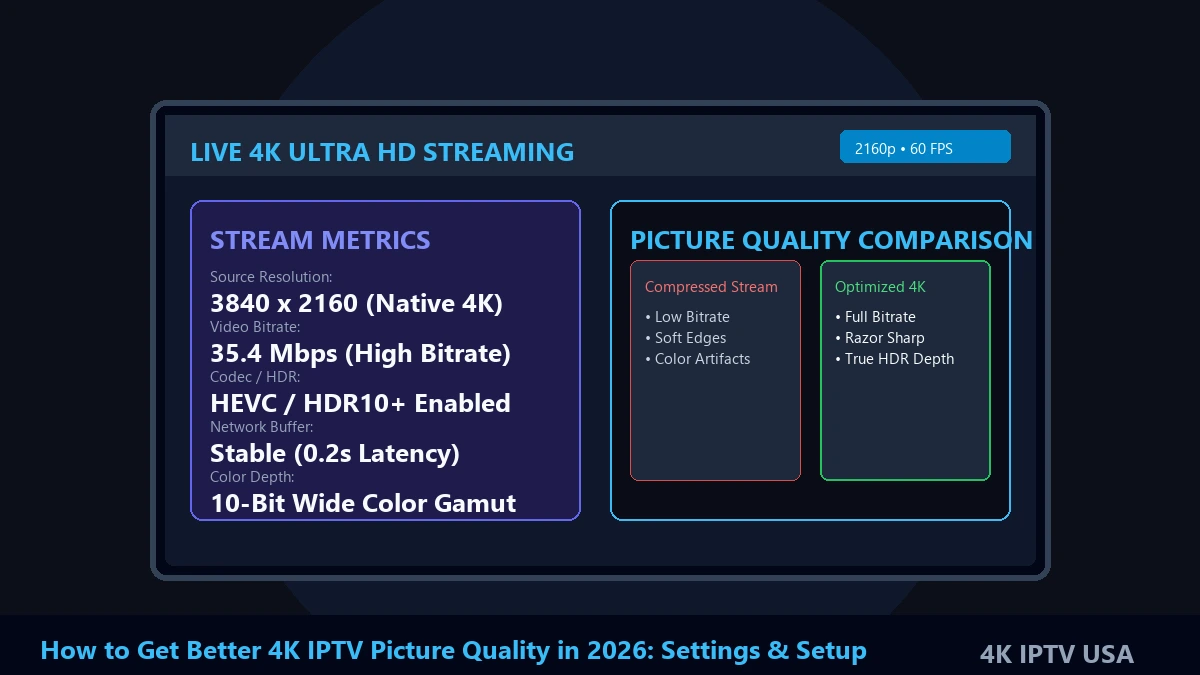
Consider two separate live video streams, both outputting a 3840 x 2160 (4K) frame resolution:
- Stream A: Encoded at a starved bitrate of 6 Mbps with aggressive compression.
- Stream B: Encoded at a generous bitrate of 35 Mbps with high-fidelity color profiles.
Even though both streams report a 4K pixel resolution, Stream A will exhibit heavy macroblocking, color banding, and soft textures. Stream B will display crisp lines, clear textures, and pristine depth. A well-encoded 1080p stream frequently looks superior to a heavily compressed 4K stream.
Source Quality
An IPTV server or TV display cannot recreate detail missing from the original source. If a live sporting event was originally filmed or uplinked in standard 1080i HD, rebroadcasting that stream inside a 4K container does not transform it into native 4K.
True 4K picture quality requires native 4K camera capture, professional mastering, and clean digital transport before reaching the encoding infrastructure.
Device and Display Processing
Once digital video data arrives at your home, two hardware components process the signal: your external streaming device (such as an Android TV box, Firestick, or Apple TV) and your TV's internal video processor.
The streaming device decodes compressed video into an uncompressed HDMI signal. The television then applies scaling algorithms, color mapping, contrast adjustments, and motion interpolation. If either device is misconfigured or underpowered, playback performance and visual sharpness degrade.
Check Whether You Are Actually Receiving 4K
Before tweaking television settings or blaming your internet provider, perform a basic diagnostic check to confirm whether your setup is delivering true 4K video data.
Many users assume they are watching 4K simply because their TV displays a "4K UHD" banner when an input is selected. That notification merely confirms that your external streaming box is sending a 4K output signal to the TV; it does not prove that the underlying stream inside the IPTV application is native 4K.
Step-by-Step 4K Verification Checklist:
- Check IPTV Player Info Overlay: Toggle playback statistics inside your IPTV application to view active video resolution, codec (e.g., HEVC/H.265), and current bitrate. Genuine 4K should report
3840x2160. - Check Streaming Device Output Settings: Open your device's display settings menu (e.g., Fire TV Display Settings or Android TV Display & Sound). Ensure resolution is set to
2160p 60HzorAuto (Up to 4K)rather than locked at1080p. - Check TV Input Info: Press the Info button on your TV remote to view input details received via HDMI. Verify that the input reports
3840x2160 @ 60Hzwith HDR enabled where applicable. - Compare Source vs. Display Output: Always distinguish between 4K Display Output (the signal sent from your streaming stick to the TV) and 4K Source Content (the actual video stream being decoded). If your streaming stick outputs 4K but the stream source is 720p, your TV is simply scaling up a low-resolution video.
Note that menu paths differ across Samsung Tizen, LG webOS, Sony Google TV, Fire OS, and Apple tvOS. Consult your device documentation when specific menu items differ.
How Much Internet Speed Does 4K IPTV Need?
Internet bandwidth is vital for continuous 4K video playback, but raw speed is only part of the equation. Connection stability and network headroom are equally critical.
When streaming 4K IPTV, your connection must support high data throughput without packet loss or latency spikes. Unlike on-demand platforms that buffer several minutes in advance, live 4K IPTV operates in near real-time. If your network dips for even two seconds, the player may drop resolution or pause to re-buffer.
Practical Connection Guidance Table
| Streaming Quality | Practical Connection Guidance |
|---|---|
| SD (480p) | Basic broadband connection (3–5 Mbps headroom) |
| HD (720p) | Stable broadband connection (5–10 Mbps headroom) |
| Full HD (1080p) | Faster and consistent connection (15–25 Mbps headroom) |
| 4K UHD (2160p) | Higher bandwidth with sufficient headroom (50–100+ Mbps recommended) |
Why 500 Mbps Internet Can Still Produce Poor 4K IPTV
Users with 500 Mbps fiber packages can still experience video compression or pixelation. High download speed does not guarantee a perfect 4K picture due to several network variables:
- Network Headroom & Simultaneous Devices: If other household members are concurrently downloading files, streaming video, or gaming, your router may throttle the IPTV device's available throughput.
- Wi-Fi Interference: Wireless speed drops over distance or through walls. A speed test near the router may show 400 Mbps, while a streaming stick behind a heavy TV cabinet receives only 18 Mbps.
- Network Congestion & Packet Loss: ISP routing congestion during peak evening hours can cause packet loss, forcing your IPTV player to downgrade picture quality.
To learn more about optimizing household bandwidth, review our guide on internet speed for 4K IPTV.
Ethernet vs Wi-Fi for 4K IPTV
Choosing how to connect your streaming device to your router is one of the most effective ways to stabilize 4K picture quality.
While modern Wi-Fi works well when signals are strong, physical Ethernet cables remain the most consistent option for high-bitrate streaming.
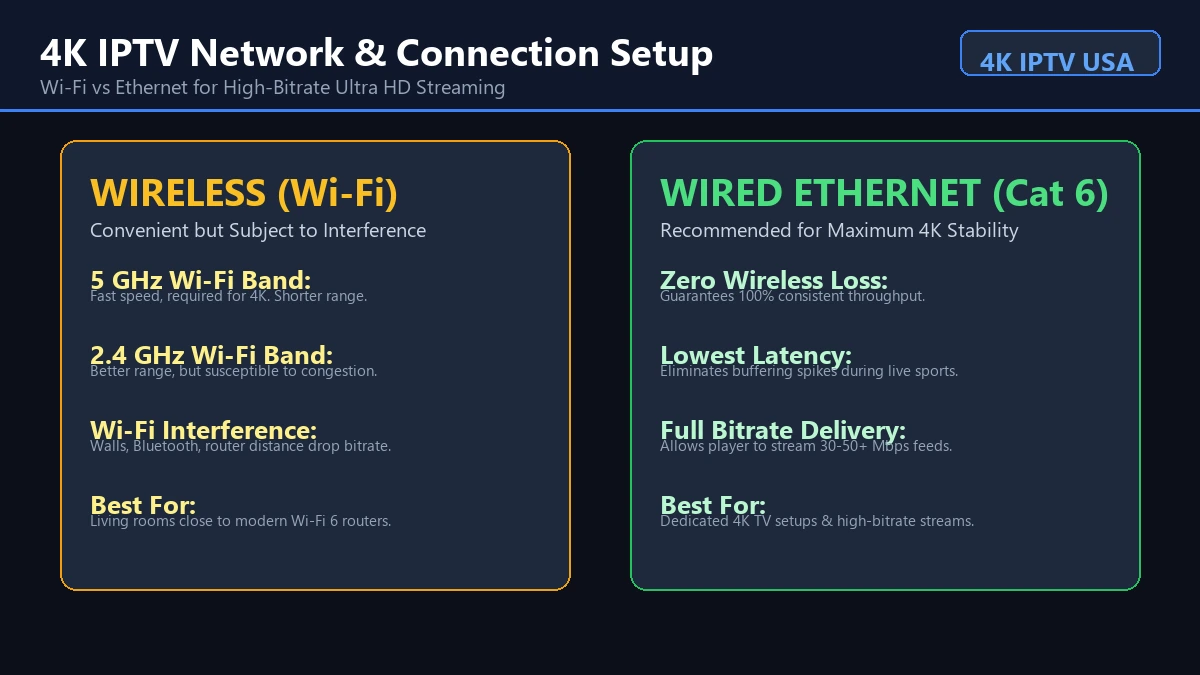 Home network setup for stable 4K IPTV streaming
Connection Comparison Table
| Connection | Advantages | Possible Issues |
|---|---|---|
| Ethernet | Stable and consistent, zero interference, lowest latency | Requires running a physical cable |
| 5 GHz Wi-Fi | Fast and convenient, high bandwidth for 4K | Shorter range, weaker wall penetration |
| 2.4 GHz Wi-Fi | Better range through physical obstacles | More interference, heavy channel congestion |
If your streaming device supports Ethernet, connecting via a Cat 6 cable eliminates wireless signal fluctuations, ensuring your player receives maximum bitrate. If Wi-Fi is necessary, connect to the 5 GHz band and position your router close to the TV.
Want to Experience Better 4K Streaming? Unlock crystal-clear 4K Ultra HD streams, 50,000+ live channels, and 120,000+ VOD titles with anti-freeze technology. Elevate your home entertainment with a reliable premium subscription. Explore 4K IPTV USA Plans & Pricing
Optimize Your TV Picture Settings for IPTV
Modern 4K televisions feature complex image processing suites. Default factory settings and aggressive processing algorithms often degrade 4K IPTV picture quality, introducing unwanted artifacts, blur, and unnatural colors.
Adjusting your television's display parameters is a zero-cost step to achieve clean, crisp 4K video.
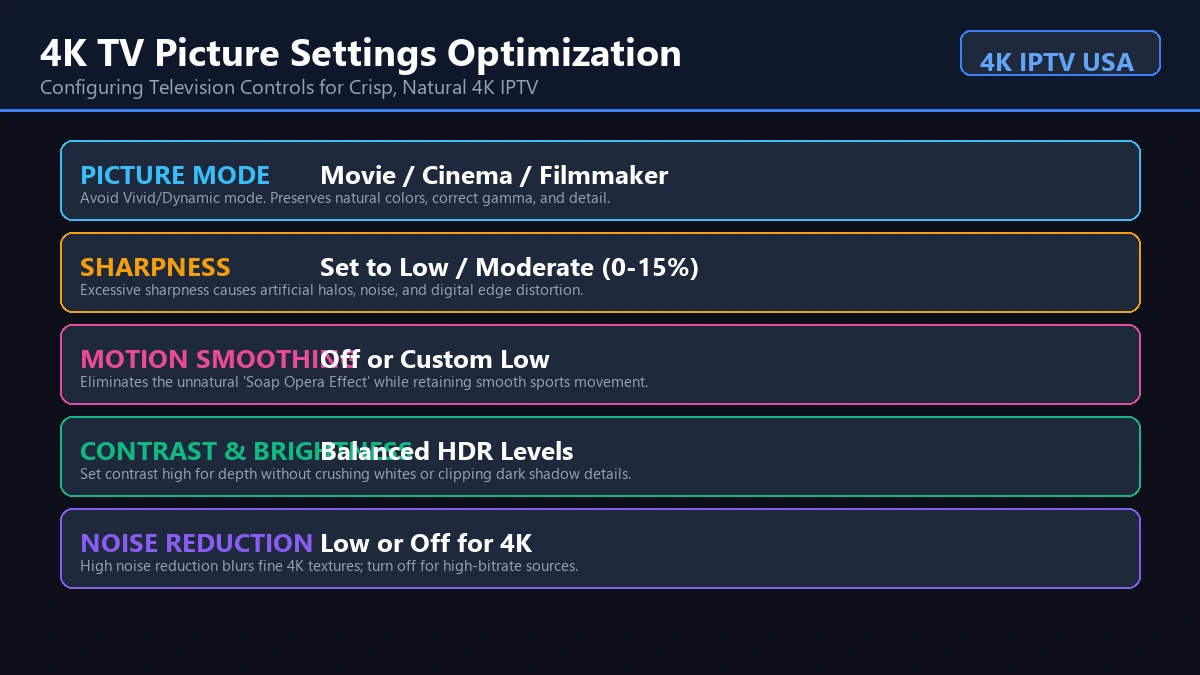 TV picture settings for improving 4K streaming quality
Choose the Right Picture Mode
Most 4K TVs ship in Vivid, Dynamic, or Standard mode. These modes oversaturate colors, blow out white highlights, and apply harsh digital sharpening.
- Recommended: Select Movie, Cinema, Calibrated, or Filmmaker Mode. These modes adhere to industry color standards, providing accurate color reproduction, proper gamma, and natural skin tones.
Avoid Excessive Sharpness
Turning the TV's Sharpness control up to 80% or 100% to make a soft stream look clearer is counterproductive.
Digital sharpness filters do not add real detail; they insert artificial white halos around edges and amplify digital compression noise.
- Recommended: Set Sharpness to a low or neutral level (typically 0% to 15%). On Sony TVs, set Sharpness to 50 (neutral 0 processing). On LG and Samsung TVs, set Sharpness between 0 and 10.
Adjust Contrast and Brightness Carefully
- Contrast: Controls bright highlights. Setting contrast too high clips bright cloud textures and stadium lighting. Set contrast to approximately 85% – 90%.
- Brightness: Controls black depth. Setting brightness too high turns deep blacks into gray; setting it too low crushes shadow details. Adjust brightness so dark clothing retains texture while background blacks remain rich.
Motion Processing
TV manufacturers feature motion smoothing technologies (e.g., Auto Motion Plus, TruMotion, Motionflow) to reduce motion blur.
While motion smoothing can help fast 60 FPS sports, aggressive settings create the unnatural "Soap Opera Effect" and cause tearing around fast-moving objects.
- For Movies/Series: Turn Motion Smoothing OFF or set to Custom (Low).
- For Live Sports: Set Motion Processing to Custom / Low to smooth out panning camera shots without introducing digital distortion.
Noise Reduction
Features labeled Digital Noise Reduction (DNR) or MPEG Noise Reduction attempt to smooth out pixelation. However, on genuine 4K content, these filters smudge fine details like facial pores, grass blades, and fabric textures.
- Recommended: Set Noise Reduction to Low or Off when watching high-bitrate 4K content.
Check Your Streaming Device's 4K Output
Even if you own an expensive 4K TV and subscribe to a high-quality IPTV service, an incorrectly configured streaming box will bottleneck your entire system.
Remember: 4K TV + 1080p Output = 1080p Output. The television cannot receive 4K if the source device is sending 1080p.
Streaming Device Platform Considerations:
- Smart TV Internal Apps (Samsung Tizen, LG webOS): Internal apps render at native display resolutions, but TV processors may have limited decoder buffer headroom.
- Android TV & Google TV (NVIDIA Shield, Chromecast): Open
Settings → Display & Sound → Resolutionand verify output is set to3840x2160 @ 60Hz. Enable hardware decoding in your player. - Fire TV Devices (Firestick 4K / Cube): Open
Settings → Display & Sounds → Display → Video Resolutionand select2160p 60Hz. SetMatch Original Frame RatetoON. - Apple TV 4K: Set Video Format to
4K SDRwithMatch Content (Range & Frame Rate)turned ON to prevent forced HDR mapping on SDR channels.
Check output resolution, automatic resolution matching, HDR compatibility, refresh rates, and hardware decoding support.
Check Your IPTV Player Settings
The IPTV application decodes video data and renders it on screen. Different players offer varying levels of hardware acceleration, buffer management, and video processing options.
Key IPTV Player Configuration Options:
- Hardware Decoding (HW / HW+): Modern IPTV players (such as Tivimate, IPTV Smarters, or XCIPTV) allow you to choose between Hardware (HW) and Software (SW) decoding. Always choose Hardware decoding for 4K video. Hardware decoding offloads processing to your device's GPU for smooth 60 FPS playback. Software decoding relies on the CPU, causing dropped frames and pixelation.
- Buffer Settings: Setting buffer size to Medium or Large (5–10 seconds) gives your player sufficient headroom to handle temporary bitrate spikes without dropping video quality.
- Hardware Acceleration & Aspect Ratio: Set aspect ratio to
OriginalorFit to Screen(avoid stretching). Enable hardware acceleration and refresh rate matching where supported by your player and device.
If you experience persistent buffering alongside poor image rendering, review our guide on 10 ways to fix IPTV 4K buffering.
Does HDMI Affect 4K IPTV Quality?
A frequently overlooked link in the streaming chain is the physical HDMI connection between your streaming box and your TV display.
While digital HDMI signals do not suffer from progressive analog color fading, an inadequate HDMI cable or port can prevent your device from transmitting 4K 60Hz or HDR data altogether.
HDMI Connection Factors:
- HDMI Port Compatibility: Check physical labels on your TV panel. Ensure your streaming box is connected to an HDMI 2.0 or HDMI 2.1 port rated for
4K @ 60HzandHDCP 2.2. - Cable Bandwidth: High-bitrate 4K 60Hz HDR video requires a cable bandwidth of at least 18 Gbps (HDMI 2.0 / Premium High Speed). Older HDMI 1.4 cables (capped at 10.2 Gbps) force streaming boxes to drop output resolution down to 1080p.
- Expensive Cable Myth: You do not need expensive, gold-plated specialty HDMI cables. Any certified "Premium High Speed" (18 Gbps) HDMI cable costing under $15 will deliver 100% of the digital data perfectly.
Why 4K IPTV Can Still Look Blurry
If you have optimized your TV settings, configured your streaming device, and verified your internet speed, but a channel still looks blurry, investigate these six common reasons:
The Stream Is Not Actually 4K
The channel category label may indicate "4K", but the provider's underlying source feed may be sourced from a standard 1080p HD broadcast.
The Bitrate Is Too Low
If an IPTV encoder compresses a 4K video stream down to 5 Mbps to save server bandwidth, fine visual detail is permanently destroyed, resulting in macroblocking and smudged textures.
The Original Source Is Low Quality
A TV cannot recreate detail that does not exist in the source. If a sporting event was filmed in 720p and upscaled before encoding, it will not look like native 4K.
The Network Is Causing Quality Drops
If your home network experiences temporary bandwidth drops, adaptive player settings may drop stream resolution to 720p or 480p to prevent freezing.
Your Device Is Struggling
Older or budget streaming sticks with weak GPUs struggle to decode high-bitrate 4K HEVC video, resulting in dropped frames and software rendering artifacts.
TV Processing Is Making the Image Worse
Over-applying digital sharpness, heavy noise reduction, and aggressive motion smoothing creates a smudged, unnatural image that mimics low resolution.
How to Tell Whether the Problem Is Your Setup or the Stream
When troubleshooting image quality, isolate whether the problem stems from your home hardware or the specific stream source using this simple 6-test diagnostic process:
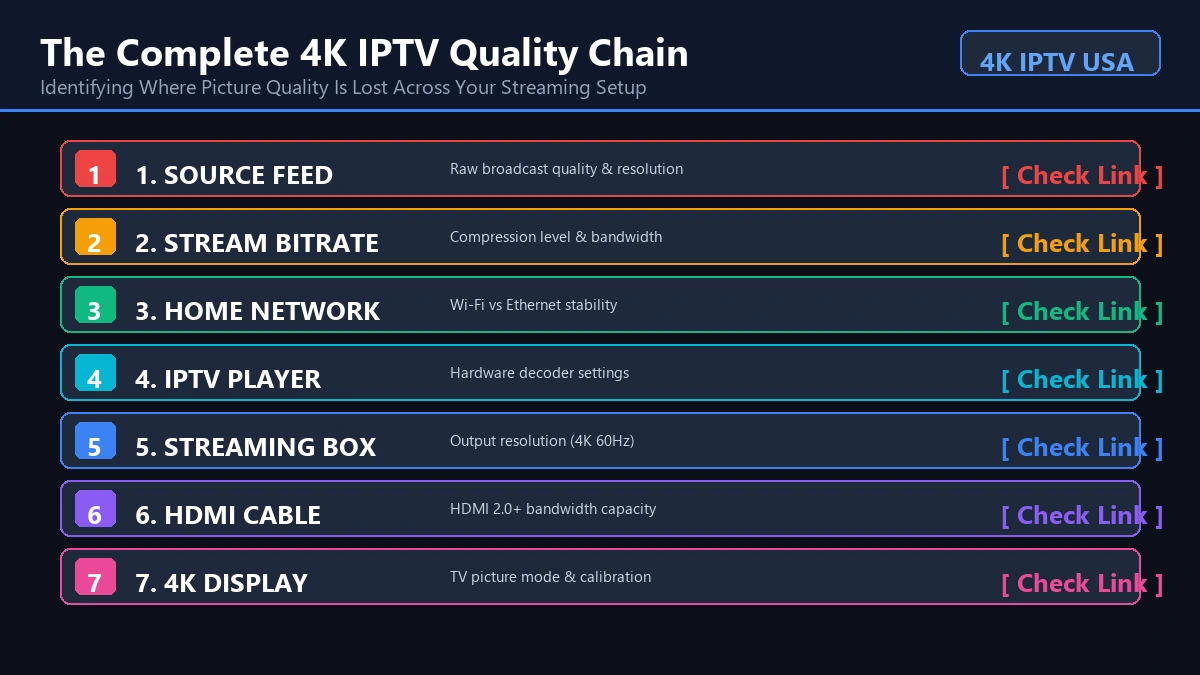 4K IPTV picture quality troubleshooting chain
Test 1 — Test Another Channel
Switch to several different 4K channels. If one channel looks poor while others look razor-sharp, the problem is specific to that stream source.
Test 2 — Test Another 4K Application
Open another legitimate 4K app (like YouTube 4K) on the same device. If YouTube displays crisp 4K, your TV, HDMI cable, and device output resolution are correctly configured.
Test 3 — Test at Different Times
Compare picture quality during afternoon and peak evening hours. If quality drops exclusively at night, local ISP congestion or household network usage is responsible.
Test 4 — Test Ethernet
Temporarily connect your streaming device directly via Ethernet. If picture stability and sharpness instantly improve, Wi-Fi signal loss was causing quality drops.
Test 5 — Test Another Device
Stream the same channel on a smartphone, tablet, or secondary display. If the picture looks sharp on another screen, your main TV's picture settings or display processing require adjustment.
Test 6 — Check Resolution Information
Examine player info overlays to verify what resolution and bitrate the device is actually receiving. If the player receives 3840x2160 at 25+ Mbps but looks soft, the video source was upscaled before encoding.
Best 4K IPTV Settings: A Practical Starting Point
Use this concise baseline checklist to optimize your 4K IPTV setup:
Network
- Stable connection (50+ Mbps available bandwidth)
- Ethernet preferred where practical (or 5 GHz Wi-Fi)
- Minimize heavy background network traffic
Streaming Device
- 4K-capable streaming device
- Current firmware updates
- Correct output resolution (
2160p 60Hz) - Hardware decoding enabled where supported
IPTV Player
- Compatible hardware video decoder (HW / HW+)
- Correct aspect ratio (
Original/Fit to Screen) - Appropriate buffer configuration (Medium/Large)
TV
- Correct picture mode (
Movie/Cinema/Filmmaker) - Moderate sharpness (
0% – 15%) - Appropriate contrast (85-90%) and brightness
- Avoid excessive noise reduction and motion processing
HDMI
- HDMI 2.0 / 2.1 port (
4K @ 60Hz HDCP 2.2) - Compatible Premium High Speed cable (18+ Gbps)
- Correct input configuration
4K IPTV Picture Quality Troubleshooting Table
Use this diagnostic table to troubleshoot common picture quality symptoms:
| Problem | Likely Cause | What to Check |
|---|---|---|
| Blurry picture | Low resolution / low source quality | Check actual stream resolution in player overlay |
| Pixelation | Compression / network instability | Test connection speed and switch to another channel |
| 4K TV but soft image | Device outputting lower resolution | Check device display resolution settings (2160p) |
| Picture drops in quality | Bandwidth / evening congestion | Test network speed and try wired Ethernet |
| Choppy 4K video | Device decoding / CPU overload | Enable Hardware (HW) decoding in player settings |
| One channel looks bad | Source-specific stream issue | Test other 4K channels to isolate the source |
| Colors look unnatural | TV picture mode / forced HDR | Select Movie/Cinema mode; set HDR to Match Content |
| HDR looks wrong | Compatibility / color space settings | Check TV HDMI Deep Color and device HDR settings |
Ready to Check Your 4K IPTV Setup? Don't settle for buffering and low-quality streams. Choose a subscription that delivers true 4K quality, massive VOD libraries, and 24/7 VIP support. Browse 4K IPTV USA Installation Guides
Frequently Asked Questions
Conclusion
Getting better 4K IPTV picture quality in 2026 is not about finding one magic setting. High-definition visual fidelity depends on the entire streaming chain:
Source + Bitrate + Network + Player + Device + HDMI + TV
Rather than replacing hardware, systematically diagnose the weakest part of your setup. Verify your streaming box outputs 2160p 60Hz, use Ethernet or 5 GHz Wi-Fi, select Hardware player decoding, switch your TV to Cinema mode, and keep sharpness low.
When streaming with 4K IPTV USA, optimizing each component of your streaming chain ensures you enjoy live sports, movies, and TV series in crisp Ultra HD detail. Explore our available 4K IPTV plans, review our simple device installation guides, or check our FAQ knowledge base to start streaming at peak picture quality today.