IPTV 4K Buffering: 10 Ways to Fix 4K Streaming Problems in 2026
IPTV 4K Buffering: 10 Ways to Fix 4K Streaming Problems in 2026
4K IPTV can provide a much sharper and more detailed picture than standard HD streaming, but higher video quality also puts greater demands on your internet connection, streaming device, IPTV player, and the stream itself. If you are using a premier service like 4K IPTV USA, optimizing your setup is essential for the best experience.
If your 4K IPTV stream constantly pauses, loads slowly, drops quality, or repeatedly shows a buffering icon, the problem may not necessarily be your internet speed alone.
Several factors can cause 4K IPTV buffering, including unstable Wi-Fi, network congestion, device limitations, player settings, high stream bitrate, or problems on the server side.
The good news is that most problems can be investigated systematically.
In this guide, we will explain 10 practical ways to troubleshoot IPTV 4K buffering and improve your streaming experience in 2026.
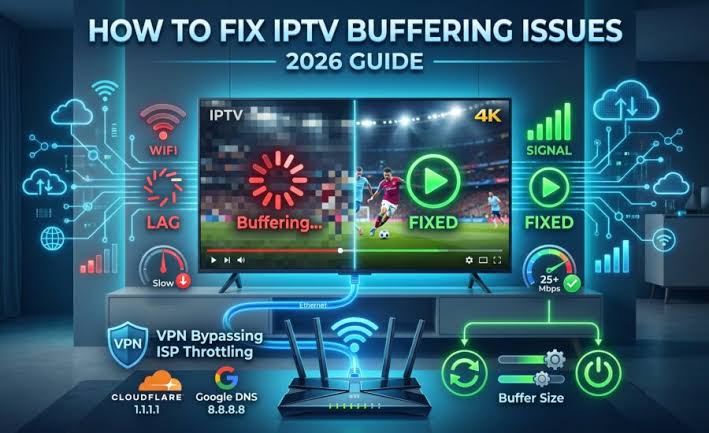
IPTV 4K Buffering Fixes
Why Does 4K IPTV Buffer?
4K IPTV streaming requires more data than lower-resolution streams.
When your device cannot receive or process the required data consistently, playback may pause while the player waits for more video data.
Common causes include:
- Slow or unstable internet
- Wi-Fi interference
- Network congestion
- High stream bitrate
- Weak router performance
- Device limitations
- Incorrect player settings
- Outdated applications
- Background downloads
- Server-side problems
The first step is identifying which part of the connection is causing the problem.
10 Ways to Fix IPTV 4K Buffering
Fix 1: Restart Your Streaming Device and Router
Start with the simplest troubleshooting step.
Restart:
- Your Android TV, Fire TV, Google TV, or compatible streaming device.
- Your router.
- Your IPTV player.
A restart can clear temporary network or application problems.
After restarting, test the same 4K channel again.
If the problem disappears temporarily but returns later, continue with the steps below.
Fix 2: Check Your Internet Speed and Stability
A 4K stream can require substantially more bandwidth than an HD stream.
However, advertised download speed is not the only factor.
Your connection should also be stable enough to maintain the stream continuously.
Check:
- Download speed
- Upload activity
- Latency
- Packet loss
- Connection stability
Avoid performing a speed test while several other devices are heavily using the network.
If possible, test your connection close to the streaming device.
 Internet Speed Requirements for IPTV
Fix 3: Stop Background Downloads and Streaming
Other devices using the same connection can compete for bandwidth.
For example:
- Another TV streaming video
- A computer downloading large files
- Cloud backups
- Game downloads
- Large system updates
- Multiple video calls
Temporarily stop unnecessary network activity and test the 4K stream again.
If buffering improves immediately, network congestion may have been part of the problem.
Fix 4: Try Ethernet Instead of Wi-Fi
Wi-Fi is convenient, but Ethernet can provide a more consistent connection when available.
This can be particularly useful for high-bitrate 4K streams.
If your streaming device supports Ethernet:
- Connect an Ethernet cable.
- Disable Wi-Fi if necessary.
- Restart the IPTV player.
- Test the same 4K channel.
If buffering disappears over Ethernet, the issue may be related to Wi-Fi signal quality or interference.
.jfif)
Fix 5: Improve Your Wi-Fi Connection
If Ethernet is not possible, optimize your wireless connection.
Try:
- Moving the router closer to the TV
- Removing obstacles between the router and device
- Using 5 GHz Wi-Fi when appropriate
- Avoiding heavily congested wireless channels
- Restarting the router
- Reducing the distance between the router and TV
Remember that 5 GHz can provide higher speeds but usually has shorter range than 2.4 GHz.
The best option depends on your home layout and router.
Fix 6: Test Another 4K Channel
Do not assume that every buffering problem is caused by your device.
Test several 4K streams.
If one channel buffers while other 4K channels play smoothly, the problem may be specific to that stream.
If every 4K stream buffers but HD channels work normally, investigate:
- Available bandwidth
- Device performance
- Decoder compatibility
- Network stability
- Stream bitrate
Testing multiple channels is one of the easiest ways to narrow down the problem. Check out our Live TV Channels to test different feeds.
Fix 7: Check Your Android TV or Streaming Device
Not every streaming device handles 4K video equally well.
Check your device's:
- Processor
- RAM
- Supported video codecs
- Maximum resolution
- HDMI capabilities
- Available storage
- Operating system version
An older or low-powered device may struggle with certain high-bitrate 4K streams. If you are using a modern device and want to ensure it is configured properly for 4K USA IPTV, review our guide on Smart TV IPTV setup.
Close unnecessary applications before testing again.
.jfif)
Fix 8: Check IPTV Player Playback Settings
Your IPTV player may provide different playback or decoder options.
Depending on the application, you may see settings such as:
- Hardware decoder
- Software decoder
- Buffer size
- Hardware acceleration
- Aspect ratio
- External player
If a 4K stream buffers or displays incorrectly, test the available decoder options one at a time.
Do not change multiple settings simultaneously.
That makes it difficult to determine which change actually helped.
Fix 9: Update the IPTV Player and Device
Outdated software can sometimes cause compatibility problems.
Check for official updates for:
- Android TV
- Google TV
- Fire TV
- IPTV player
- Device firmware
If the problem started immediately after an application update, check whether another update is available or review the application's current settings. For detailed setup guides, visit our Installation Guide.
Avoid installing unofficial modified versions of IPTV applications.
Fix 10: Check Whether the Problem Is Server-Side
If your internet connection is stable and other services stream normally, the problem may be outside your home network.
Possible server-side causes include:
- High server load
- Temporary outages
- Stream overload
- Maintenance
- High demand during major events
A useful test is to compare several channels.
If only certain channels buffer, the issue may be associated with those streams.
If everything from the same service buffers while other internet services work normally, check the FAQ Knowledge Base or contact the service's official support. If you're exploring better IPTV subscription USA options, check out the available 4K IPTV USA plans to compare features.
How Much Internet Speed Do You Need for 4K IPTV?
There is no universal bandwidth number that guarantees perfect 4K streaming quality.
The actual requirement depends on the stream's bitrate, codec, compression, network overhead, and stability. For a detailed breakdown, read our guide on internet speed for 4K IPTV.
As a practical approach, your connection should have enough available bandwidth to comfortably handle the stream rather than operating at its maximum capacity.
For example, if your household is already using most of the available bandwidth, a 4K stream may buffer even when your internet package looks fast enough on paper.
The important factors are:
- Available bandwidth
- Consistent throughput
- Low packet loss
- Stable latency
- Network congestion
Is Ethernet Better Than Wi-Fi for 4K IPTV?
Ethernet is often preferable when you want the most consistent connection for your 4K IPTV service.
Wi-Fi can still work very well when the signal is strong and the network is not congested.
Choose Ethernet when:
- Your device supports it
- The router is nearby
- You regularly stream high-bitrate 4K content
- Wi-Fi interference is a problem
Wi-Fi can be perfectly adequate when:
- Signal strength is strong
- The router is modern
- The device is close to the router
- The network is not overloaded
How to Tell if Your Device Is the Problem
A useful troubleshooting method is to compare devices.
For example, test the same authorized stream on:
- Android TV
- Google TV
- Fire TV
- Another compatible device
If the stream works correctly on one device but constantly buffers on another, investigate the slower device's hardware, software, network connection, and playback settings.
Does a VPN Fix 4K IPTV Buffering?
A VPN does not automatically fix buffering.
In some network configurations, routing traffic through a different connection can change performance, but a VPN can also reduce available bandwidth or increase latency.
If you are troubleshooting buffering, first test the basics:
- Direct internet connection
- Ethernet versus Wi-Fi
- Different channels
- Different devices
- Player settings
- Network congestion
Only then consider whether a different network route changes the result.
4K IPTV Buffering Troubleshooting Table
| Problem | Possible Cause | First Fix to Try |
|---|---|---|
| All 4K channels buffer | Network or device | Test connection and device |
| One channel buffers | Stream-specific issue | Test another channel |
| HD works but 4K buffers | Bandwidth/device limitation | Check speed and hardware |
| Buffering happens at night | Network congestion | Test at another time |
| Wi-Fi buffers but Ethernet works | Wireless interference | Improve Wi-Fi or use Ethernet |
| Buffering after app update | App compatibility | Check settings/update |
| Audio works but video fails | Decoder issue | Test hardware/software decoder |
| Multiple devices buffer | Service/network issue | Test internet and service |
| Only one device buffers | Device-specific issue | Check hardware/software |
| Buffering during major events | High demand | Test other streams/service status |
Why Does 4K IPTV Buffer More During Peak Hours?
Some users notice more buffering during evenings or major sporting events.
This can happen because more people are using the same local network, increasing household congestion.
It can also occur when a streaming service experiences increased demand.
To identify the cause, compare:
- Morning vs evening
- Weekday vs weekend
- Normal programming vs major events
- 4K vs HD
- Wi-Fi vs Ethernet
This comparison can help determine whether the issue is local or service-related.
Should You Lower the Video Quality?
If your connection or device cannot reliably handle a particular IPTV in 4K stream, switching temporarily to Full HD can be a useful diagnostic test.
If Full HD plays smoothly while 4K repeatedly buffers, you have evidence that the problem is related to the higher bandwidth or processing requirements of the 4K stream.
This does not necessarily mean your internet is "bad."
It may simply mean that the particular 4K stream requires more resources than your current setup can consistently provide. If you are looking for reliable streams, consider our IPTV plans.
Frequently Asked Questions
Why does my IPTV keep buffering in 4K?
Common causes include insufficient available bandwidth, unstable Wi-Fi, network congestion, device limitations, high stream bitrate, incorrect player settings, or server-side issues.
Why does HD work but 4K buffer?
4K streams generally require more data and processing power. If HD works while 4K buffers, check your available bandwidth, device capabilities, decoder settings, and the specific 4K stream.
Is 50 Mbps enough for 4K IPTV?
It may be sufficient for many 4K streams, but speed alone does not guarantee smooth playback for Ultra HD IPTV. Stability, bitrate, network usage, and the stream itself also matter.
Is Ethernet better for 4K IPTV?
Ethernet can provide a more consistent connection than Wi-Fi and can be especially useful when using an IPTV with 4K channels.
Why does IPTV buffer only at night?
Possible reasons include household network congestion, ISP congestion, or increased demand on the streaming service. Test the same stream at different times to identify a pattern.
Can restarting the router fix IPTV buffering?
It can fix temporary network issues, but it will not solve persistent problems caused by insufficient bandwidth, device limitations, or server-side problems.
Should I change my IPTV player?
If the same stream consistently buffers in one player, testing another compatible player can help determine whether the problem is application-specific.
Can an old Android TV device cause 4K buffering?
Yes. Older hardware may have limitations related to processing power, codecs, memory, or 4K playback support.
Can a VPN reduce IPTV buffering?
A VPN is not a guaranteed solution. It may improve routing in some situations but can also add latency or reduce throughput.
How can I test whether my IPTV service is causing buffering?
Test multiple channels, compare HD and 4K streams, and test the same service on another compatible device or network if possible.
Conclusion
4K IPTV buffering can have many different causes, so changing one setting at random is rarely the best approach.
Start with the basics: restart your router and device, check your connection, stop unnecessary downloads, and test several channels.
If Wi-Fi is unstable, try Ethernet. If HD works but 4K does not, investigate bandwidth, device capabilities, decoder settings, and stream bitrate. Exploring available IPTV plans can also help you find a service better optimized for your region.
Finally, remember that not every buffering problem originates from your home network. If multiple devices experience the same issue while other internet services work normally, the streaming service or individual streams may need to be investigated.
By testing each part of the setup systematically, you can usually identify the main source of IPTV 4K buffering and determine the most appropriate solution.