How to Set Up IPTV on Android TV in 2026
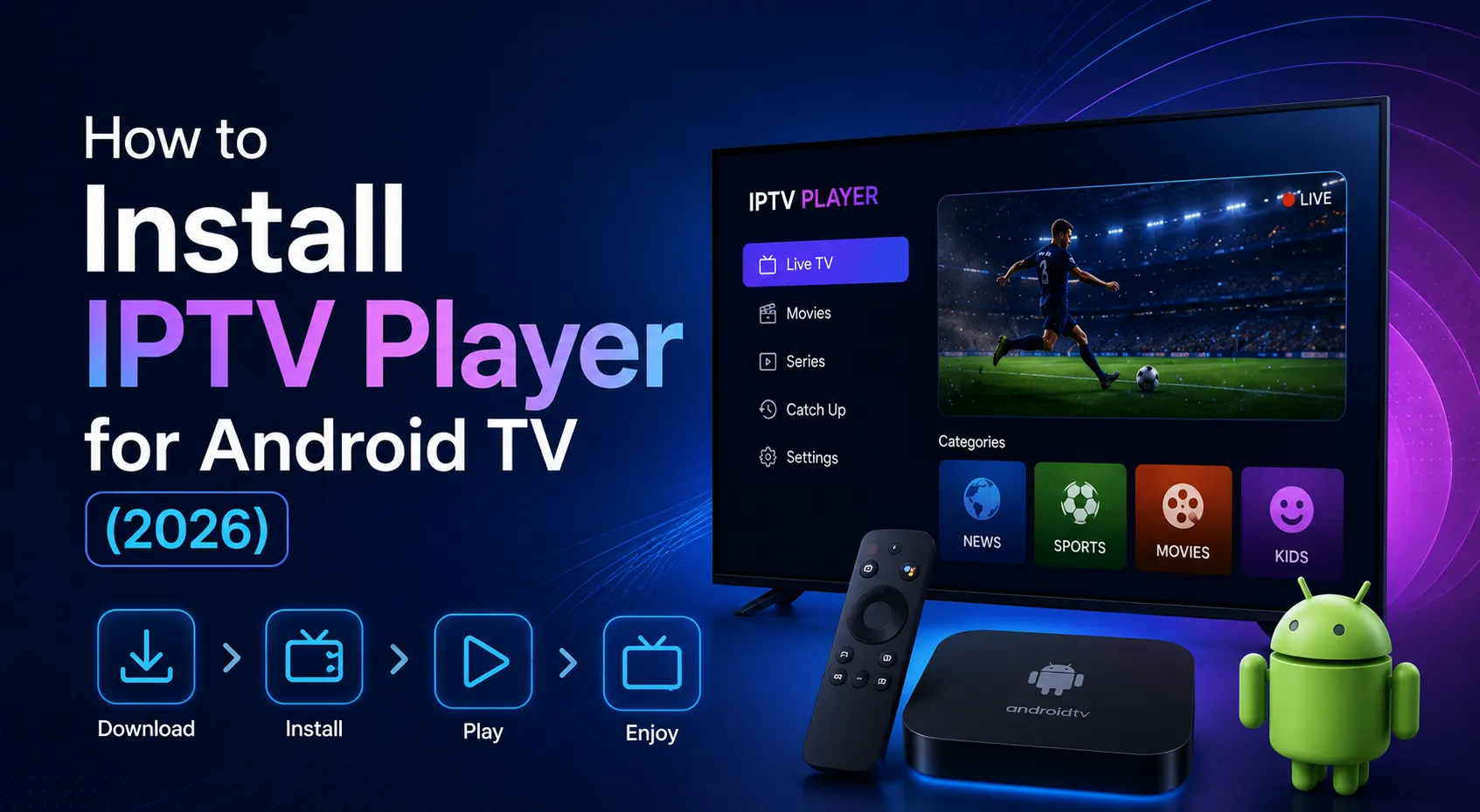
How to Set Up IPTV on Android TV in 2026
Android TV is one of the most convenient platforms for IPTV because it combines a large-screen interface with access to TV-friendly applications.
Whether you use a television with Android TV built in or a compatible Android TV or Google TV streaming device, setting up an IPTV player is usually straightforward.
You generally need three things: a compatible IPTV player, an authorized IPTV playlist or account (such as one of the available IPTV plans from 4K IPTV USA), and a stable internet connection.
Depending on the service you use, your playlist may be provided as an M3U URL or through Xtream Codes credentials. Many IPTV players also support an Electronic Program Guide, commonly called EPG, which adds program schedules to your channel list.
This guide explains how to set up IPTV on Android TV in 2026, how to add your playlist, configure the EPG, optimize playback, and troubleshoot common problems.
How to set up IPTV on Android TV in 2026
What You Need Before Setting Up IPTV
Before installing anything, prepare the information you will need.
You should have:
- An Android TV or compatible Google TV device
- A stable internet connection
- Access to Google Play Store when available
- A compatible IPTV player
- An authorized IPTV playlist or account from your IPTV subscription options
- An M3U URL or Xtream Codes credentials
- EPG information if your service provides it
Your IPTV service may provide either an M3U playlist URL or three Xtream Codes fields:
- Server URL
- Username
- Password
Use only IPTV content and credentials that you are authorized to access. If you are looking for top-tier 4K IPTV USA services, check our Live TV Channels and IPTV subscription options to see what we offer.
Step 1: Connect Android TV to the Internet
Start by making sure your Android TV device has a stable internet connection.
Open the device's network settings and connect to your Wi-Fi network.
If your Android TV device supports Ethernet, a wired connection can be useful for maintaining a more consistent connection, particularly when watching high-resolution content. To understand bandwidth requirements, see our guide on internet speed for 4K IPTV.
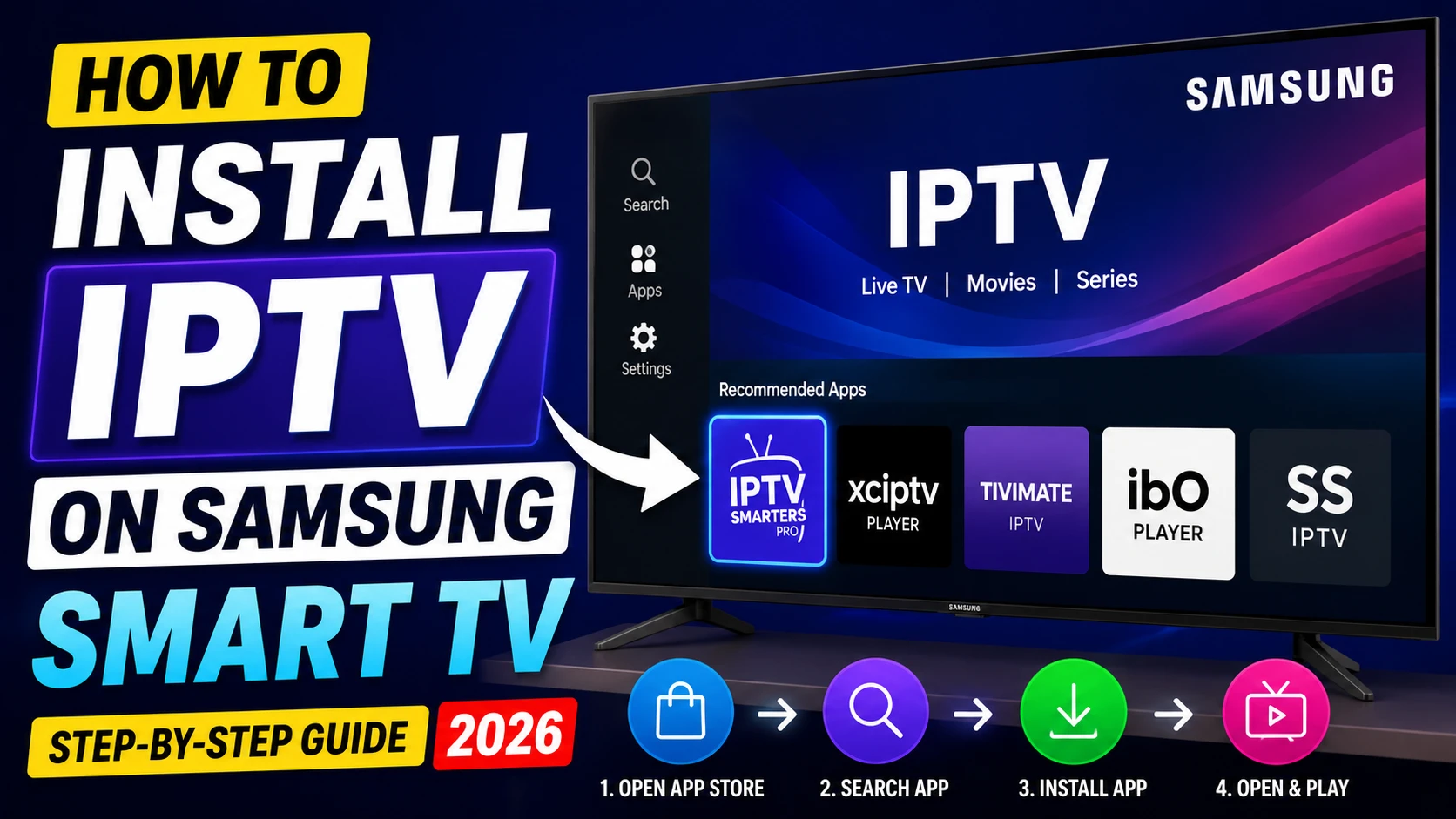 Connecting an Android TV device to the internet
If you use Wi-Fi, a strong 5 GHz connection can be useful when your router and device support it and the signal is strong enough.
Before continuing, open another application on the TV and confirm that the internet connection is working.
Step 2: Install an IPTV Player
Open the Google Play Store on your Android TV device.
Search for a compatible IPTV player and install it from its official listing.
 Installing an IPTV player on Android TV
Examples of IPTV player applications include:
- TiviMate
- IPTV Smarters
- Other compatible Android TV IPTV players
The best application depends on the features you need and the playlist format supplied by your IPTV service.
For example, if you receive an M3U URL, choose a player that supports M3U playlists.
If your service provides Xtream Codes credentials, choose a player that supports that login method.
Step 3: Open the IPTV Player
After installation, launch the application.
Most IPTV players will ask you to add a playlist or account during the initial setup.
You may see options such as:
- Add playlist
- M3U playlist
- Xtream Codes
- Login
- Add user
The exact wording depends on the application.
Choose the option that matches the information provided by your authorized IPTV service.
Step 4: Add an M3U Playlist
If your service provides an M3U URL, choose the M3U or playlist URL option.
You will normally need to enter:
- Playlist name
- M3U URL
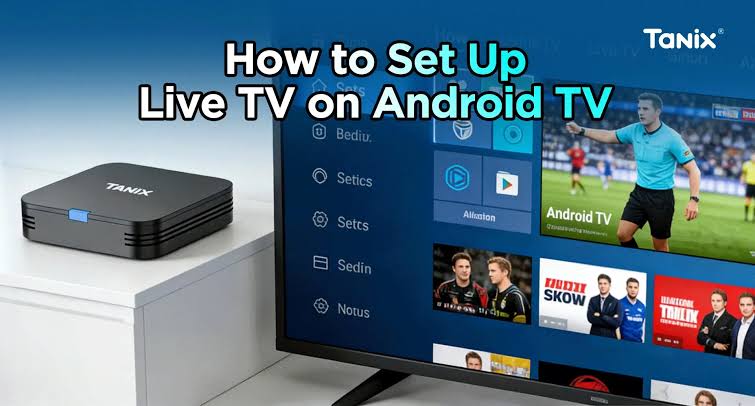
Give the playlist a recognizable name.
Then enter the complete M3U URL exactly as provided.
Be careful when entering the URL.
A single missing character can prevent the playlist from loading.
After entering the information, select Add, Next, Save, or the equivalent option in your player.
The application should begin processing the playlist.
Large playlists may take longer to load, so avoid repeatedly closing the application while it is processing the data.
Step 5: Set Up IPTV Using Xtream Codes
Some IPTV services provide Xtream Codes-style credentials instead of a direct M3U URL.
If your player supports this method, select the Xtream Codes login option.
You will normally enter:
- Server URL
- Username
- Password
Enter the information exactly as provided.
Do not add unnecessary spaces or change the server address.
After submitting the information, the player should connect to the service and retrieve the available content.
Depending on the player and service, this may include:
- Live TV
- Channel groups
- Movies
- Series
- EPG information
The exact features depend on the service and player.
Step 6: Configure the EPG
EPG stands for Electronic Program Guide.
It displays information about current and upcoming programs.
Some IPTV services provide EPG information automatically, while others provide a separate EPG URL.
If your service provides an EPG URL, open the EPG settings in your IPTV player.
You may see options such as:
- EPG
- EPG Source
- Add EPG
- Update EPG
- Refresh EPG
Enter the EPG URL supplied by your service.
After saving it, refresh the guide.
If program information does not appear, verify that the playlist and EPG data are compatible.
Incorrect channel identifiers can also prevent the EPG from matching programs to channels.
Step 7: Wait for the Playlist and EPG to Load
After adding your playlist, give the application enough time to process the information.
The loading time depends on:
- Playlist size
- Internet connection
- Device performance
- Server response
- IPTV player
Once loading is complete, open the Live TV or Channels section.
Check several channels rather than testing only one.
If the EPG is available, check whether current and upcoming program information appears correctly.
Step 8: Organize Your Channels
Large IPTV playlists can contain thousands of channels.
Organizing them can make the experience much easier.
Useful features may include:
- Favorites
- Channel groups
- Categories
- Search
- Recently watched
- Hidden channels
If your player supports favorites, create a list containing the channels you watch most frequently.
This is especially useful when your playlist contains many channels from different countries or categories.
Step 9: Configure Video Playback
Many IPTV players provide playback settings.
Depending on the application, you may find:
- Hardware decoding
- Software decoding
- Hardware acceleration
- Buffer settings
- Aspect ratio
- Audio track
- Subtitle settings
- External player options
If a channel displays a black screen, stutters, or has audio without video, test the available decoder options one at a time.
Avoid changing several settings simultaneously because it makes troubleshooting more difficult.
Step 10: Test Different Channels
After completing the setup, test several channels.
For example:
- News
- Sports
- Entertainment
- Movies
- HD channels
- IPTV with 4K channels
If only one channel fails, the issue may be specific to that stream.
If all channels fail, check:
- Internet connection
- Playlist URL
- Username
- Password
- Server URL
- Application settings
Testing multiple channels is one of the easiest ways to determine whether the issue is local or stream-specific.
How to Improve IPTV Performance on Android TV
Correct setup is only part of the streaming experience.
Your network and device also affect playback quality.
Use a Stable Internet Connection
Streaming requires a consistent connection.
A high advertised download speed does not automatically guarantee smooth playback.
Stability, latency, packet loss, Wi-Fi interference, and network congestion can also affect streaming.
Prefer Ethernet When Practical
If your Android TV device supports Ethernet, a wired connection can reduce wireless interference.
This can be particularly useful for high-bitrate HD and 4K streams.
If Ethernet is not practical, use a strong Wi-Fi connection and position the router appropriately.
Reduce Network Congestion
Other devices on the same network can consume bandwidth.
Examples include:
- Game downloads
- Cloud backups
- Large file downloads
- Video calls
- Other streaming services
If IPTV buffers, temporarily stop unnecessary network activity and test again. You can check our detailed guide on fixing streaming problems here: 4K IPTV buffering troubleshooting.
Keep Android TV Updated
Check for official system updates periodically.
Updates can include:
- Bug fixes
- Compatibility improvements
- Security updates
- Performance improvements
Keep the IPTV Player Updated
Use the official application distribution channel whenever possible.
An application update may improve compatibility with newer Android TV versions.
If a problem begins immediately after an update, review the application's settings and check whether another official update is available.
Common IPTV Problems on Android TV
IPTV Channels Are Not Loading
Check:
- Internet connection
- Playlist URL
- Username
- Password
- Server URL
- Account status
Then test the same authorized credentials in another compatible player if possible.
IPTV Is Buffering
Possible causes include:
- Weak Wi-Fi
- Network congestion
- Server-side problems
- High-bitrate streams
- Device limitations
Test another channel to determine whether the issue affects one stream or the entire playlist.
IPTV Has a Black Screen
Check:
- Video decoder
- Player settings
- Device compatibility
- Individual stream
If audio works but video does not, decoder compatibility is worth investigating.
EPG Is Not Loading
Check:
- EPG URL
- EPG source
- Playlist mapping
- Device time zone
- EPG refresh settings
IPTV Login Failed
Recheck:
- Username
- Password
- Server URL
- Login method
Make sure the information is entered exactly as supplied.
IPTV on Android TV Troubleshooting Table
| Problem | First Things to Check |
|---|---|
| IPTV app will not open | Restart device and update app |
| Playlist will not load | Internet and playlist URL |
| Login failed | Username, password and server URL |
| Channels are missing | Playlist and channel groups |
| IPTV buffering | Wi-Fi/Ethernet and network usage |
| Black screen | Decoder and player settings |
| Audio but no video | Video decoder compatibility |
| EPG not loading | EPG source and refresh |
| Wrong EPG time | Device time zone |
| Only one channel fails | Individual stream |
Can You Use IPTV on Google TV?
Google TV devices use the Android TV platform underneath, so many Android TV-compatible IPTV players can also be used on Google TV devices.
The exact application availability depends on the device and the current Google Play Store listing.
The basic process remains similar:
- Connect the device to the internet.
- Open Google Play Store.
- Install a compatible IPTV player.
- Add your authorized M3U or Xtream Codes information.
- Configure EPG if available.
- Test playback.
Can You Use IPTV on an Android TV Box?
Yes, compatible Android TV boxes can also run IPTV players.
The experience depends heavily on the hardware.
Before choosing an Android TV box for streaming, consider:
- Operating system
- RAM
- Processor
- Video codec support
- 4K support
- Ethernet availability
- Google Play Store availability
Do not assume that every device marketed as an Android box provides the same Android TV experience.
Do You Need a VPN for IPTV on Android TV?
A VPN is not automatically required for IPTV.
Whether you use one depends on your privacy preferences, network configuration, local rules, and the terms of the IPTV packages you use.
A VPN also cannot fix every IPTV problem.
If the underlying problem is an incorrect playlist, expired account, broken EPG, or incompatible decoder, changing the network route will not necessarily solve it. For more answers to common questions, you can check our FAQ Knowledge Base.
Frequently Asked Questions
Can I install IPTV directly on Android TV?
Yes. Many IPTV players are available for compatible Android TV devices through official app stores. Availability depends on the device and application.
What do I need to set up IPTV on Android TV?
You generally need an Android TV or compatible Google TV device, internet access, an IPTV player, and an authorized IPTV subscription USA.
Is M3U better than Xtream Codes?
Neither is universally better.
M3U provides a playlist URL, while Xtream Codes-style login normally uses a server URL, username, and password.
Choose the format supported by your IPTV service and preferred player.
Why is my IPTV playlist not loading?
Check the URL carefully, verify your internet connection, confirm that your account is active, and test the playlist in another compatible player if possible.
Why is IPTV buffering on Android TV?
Buffering can be caused by Wi-Fi interference, network congestion, server performance, high-bitrate streams, or device limitations.
Why is my IPTV EPG empty?
The EPG source may be missing, incorrect, unavailable, or incorrectly mapped to the playlist.
Refresh the EPG and verify the EPG information supplied by your authorized service.
Can Android TV play 4K IPTV?
Compatible Android TV devices can play 4K streams, but actual playback depends on device hardware, codec support, stream bitrate, network stability, and the source. For best performance with 4K streaming quality, ensure your setup is properly configured.
Can I use the same IPTV account on multiple devices?
That depends on the terms and connection limits of your IPTV service.
Check the service's account conditions and Available subscription options before using the same credentials on multiple devices.
Is an IPTV player the same as an IPTV provider?
No.
An IPTV player is software used to organize and play content.
An IPTV provider or content source (often offering various IPTV subscription options) supplies the playlist or authorized content.
The player itself does not automatically provide television channels.
Conclusion
Setting up IPTV on Android TV in 2026 is relatively straightforward when you have a compatible player and an authorized IPTV source.
Start by connecting your Android TV device to a stable network, installing a compatible IPTV player, and securing your IPTV subscription USA.
Then add your M3U playlist or Xtream Codes credentials, configure the EPG if your service provides it, organize your channels, and test several streams.
If you experience problems, troubleshoot one part at a time.
Check the playlist, credentials, network connection, EPG, application settings, and device compatibility before assuming that the entire service is unavailable.
With the correct setup and a stable connection, Android TV can provide a convenient large-screen environment for IPTV playback.